Quick Start
This walkthrough takes you from launching the GUI to viewing your first results. For detailed explanations of each step, see the User Guide.
1. Launch the GUI
conda activate morphometrics
morphometrics gui

2. Create an experiment
In the experiment manager panel (right side):
- Set a Work Directory — where experiment folders will be created
- Enter an Experiment Name
- Select your Data Directory — the folder with your segmentation files
-
Choose a Config Template — a YAML file from the
surface_morphometricsdirectoryConfig template location matters
The GUI detects analysis scripts based on where your config template is located. Keep your config template inside the
surface_morphometricsdirectory (the repository containing the pipeline scripts). If you move it elsewhere, the GUI will not find the scripts. -
Set the number of Cores for parallel processing
- Review the Segmentation Values populated from the template
- Click New Experiment

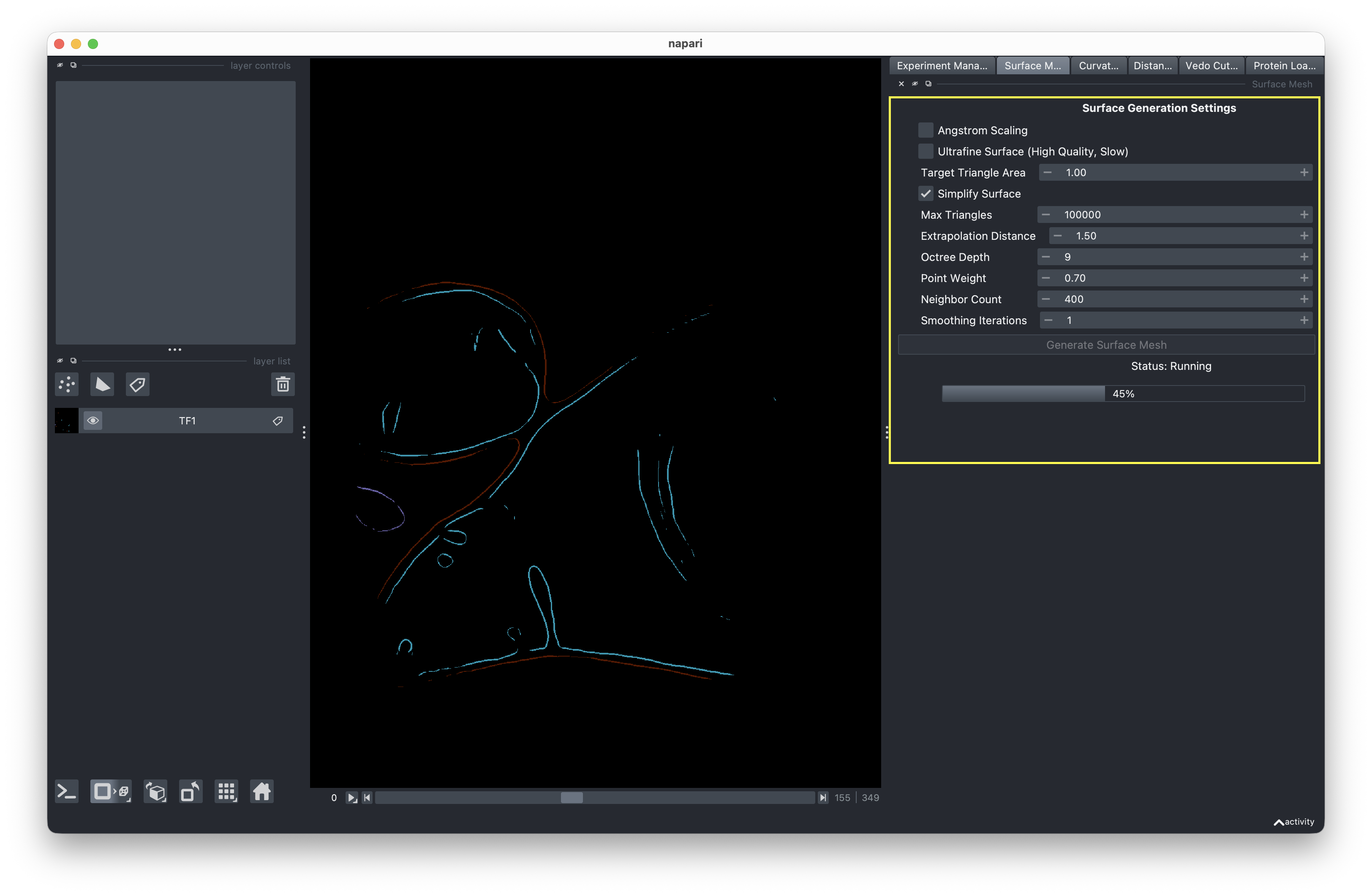
3. Generate surface meshes
Switch to the Mesh Generation tab:
- Review the mesh generation settings
- Click Run to generate surface meshes from your segmentations
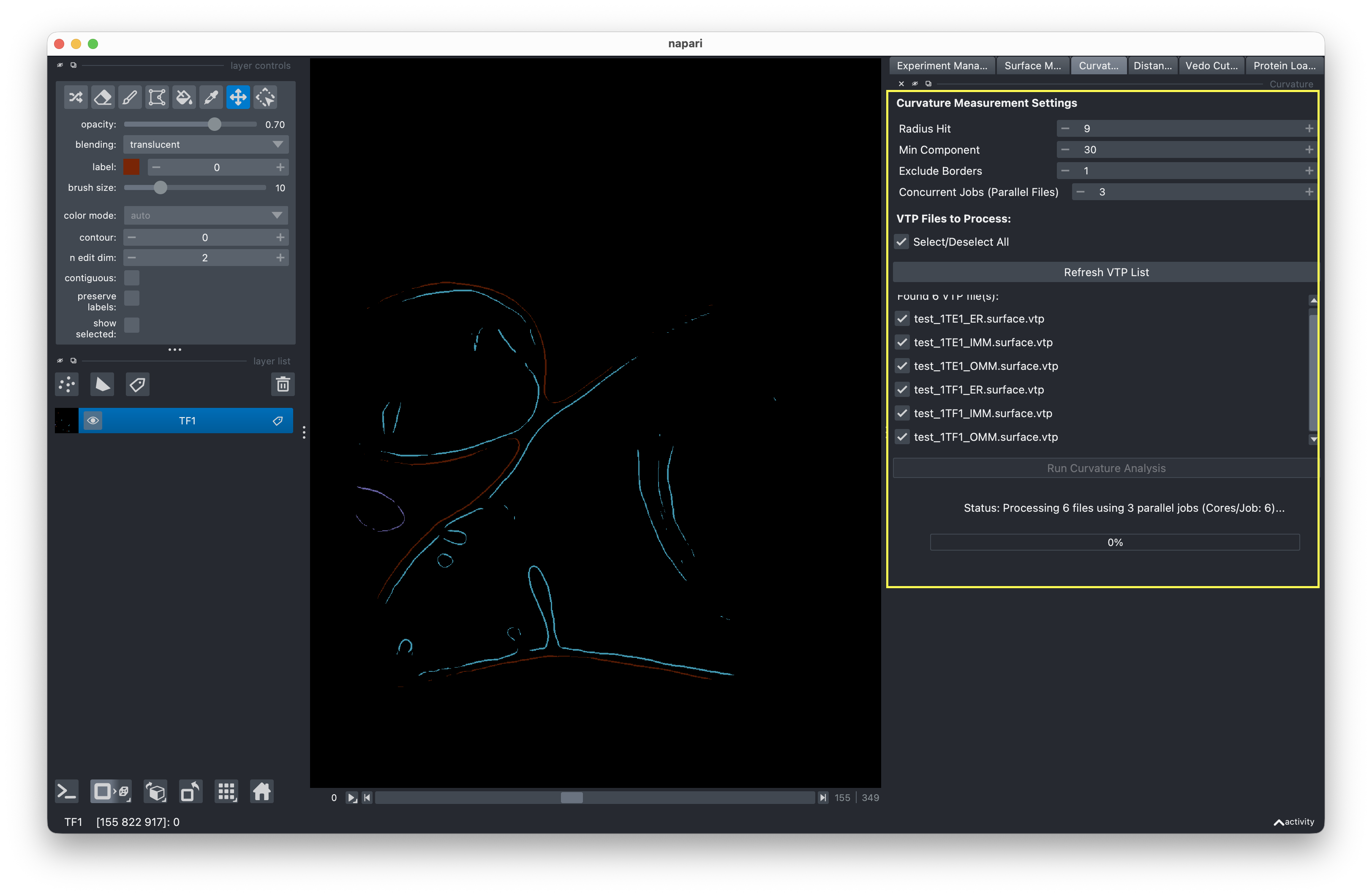
4. Run curvature analysis
Switch to the PyCurv tab:
- Select the VTP files to analyze (or use Select All)
- Click Run to compute curvature measurements
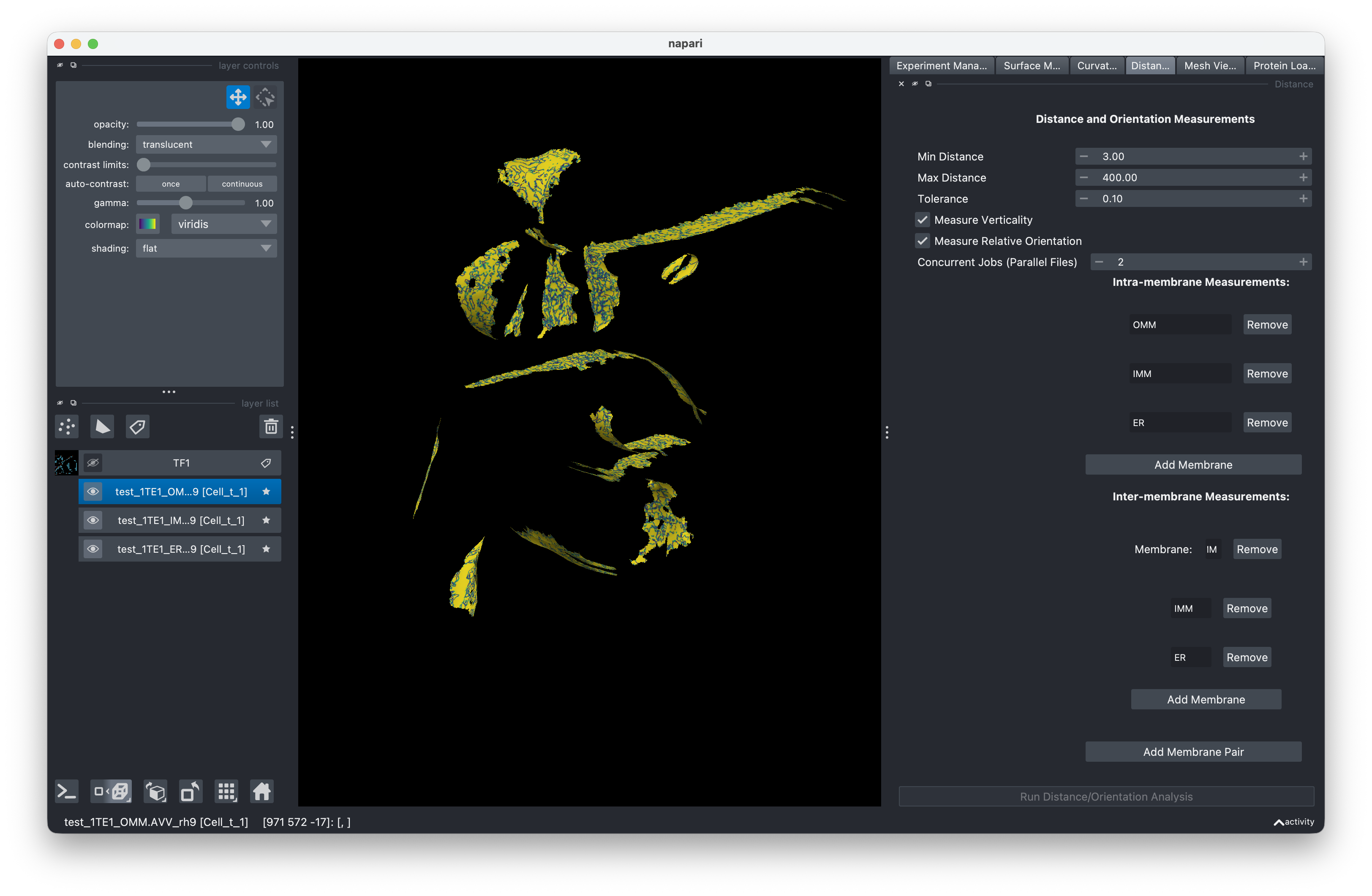
5. Measure distances and orientations
Switch to the Distance & Orientation tab:
- Configure intra-membrane and inter-membrane measurement pairs
- Click Run to compute distances and orientations
6. Visualize results
Use the visualization panel on the left side to:
- Preview your dataset with the tomogram slice viewer
- Load and rotate meshes in 3D
- Color surfaces by curvature, distance, or other properties
- Load protein structures onto meshes
Next steps
See the User Guide for detailed explanations of each step, including configuration options and tips for getting the best results.