Curvature Analysis
This step runs PyCurv to compute curvature measurements (Gaussian, mean, and principal curvatures) on your generated surface meshes using a vector voting framework.
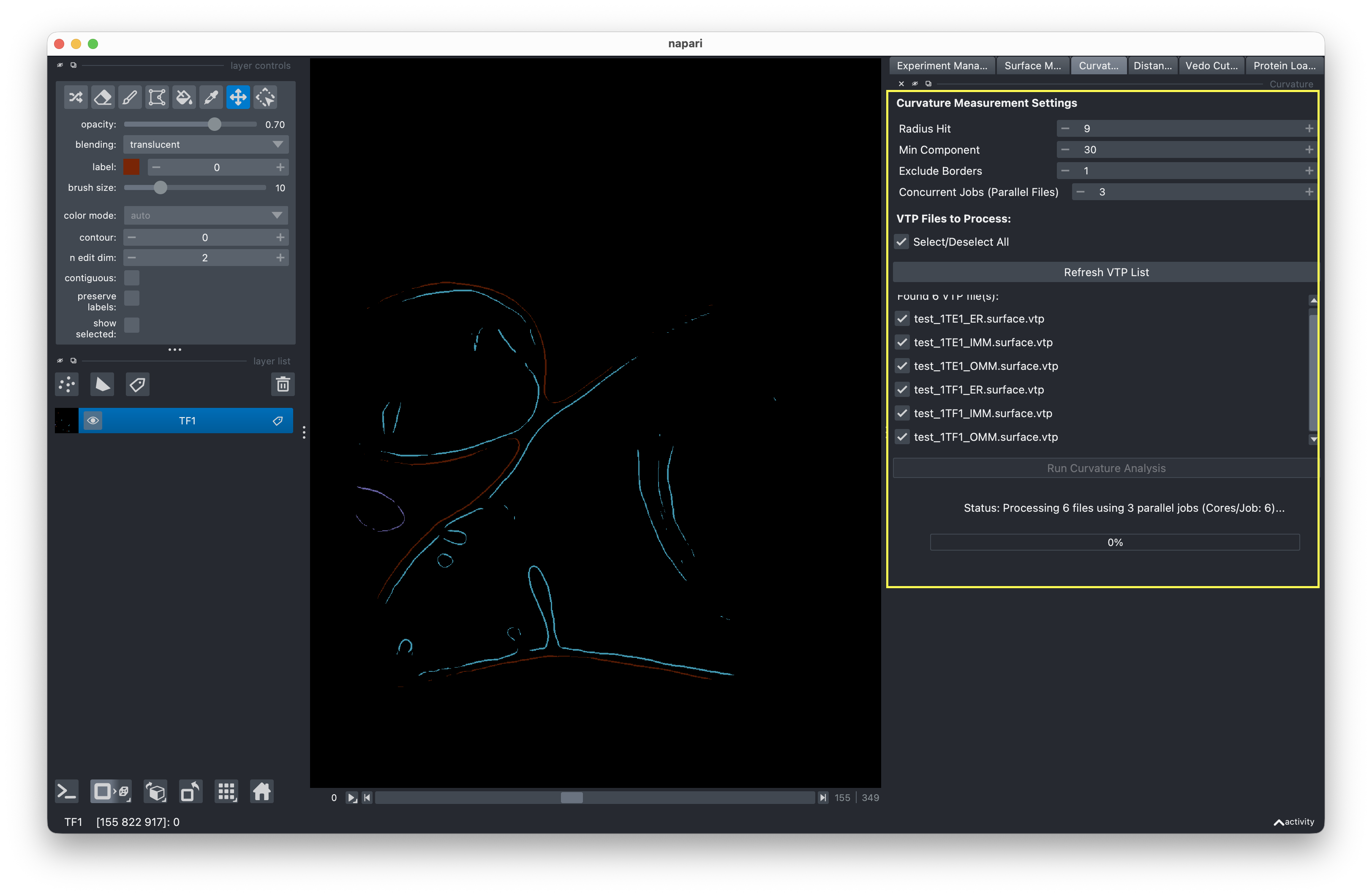
Settings
The PyCurv tab provides the following curvature measurement parameters:
| Setting | Description |
|---|---|
| Radius Hit | Radius for the vector voting neighborhood (in voxels). Larger values produce smoother curvature estimates |
| Min Component | Minimum connected component size. Components smaller than this are excluded from analysis |
| Exclude Borders | Number of border vertices to exclude from measurements, reducing edge artifacts |
Selecting files
The VTP file list shows all surface meshes available for analysis in your experiment directory.
- Use Select/Deselect All to toggle all files at once, or pick individual files by checking their boxes.
- If you don't see expected files (e.g., after running mesh generation), click Refresh to rescan the experiment directory.
Parallel processing (Workers)
This tab supports two levels of parallelism that let you control how your system resources are used:
Cores per job
The Cores value you set during experiment setup controls how many CPU cores each individual PyCurv process uses. Each VTP file is processed by a subprocess that uses this many cores for its internal computations.
Concurrent Jobs
The Concurrent Jobs spinner on the PyCurv tab controls how many VTP files are processed at the same time. For example, if you set Concurrent Jobs to 3, three files will run in parallel, each using the number of cores specified in your experiment config.
The total CPU load is:
Total threads = Concurrent Jobs x Cores per job
Avoid overloading your system
If the total thread count exceeds your system's CPU cores, the GUI will display a warning. For example, with 4 concurrent jobs and 6 cores per job, you'd use 24 threads. On a 16-core machine, this would cause significant slowdown.
A good rule of thumb: keep Concurrent Jobs x Cores at or below your total CPU core count.
How it works
When you click Run, all selected VTP files are submitted to a thread pool. The pool processes up to Concurrent Jobs files simultaneously. As each file finishes, the next queued file starts automatically. Progress updates in the progress bar as each file completes.
Running the analysis
- Switch to the PyCurv tab.
- Review and adjust the curvature settings if needed.
- Select the VTP files to process.
- Set Concurrent Jobs based on your available resources.
- Click Run to start the curvature analysis.
Output
You can visualize the results in the Visualization panel by selecting curvature properties from the dropdown menu.
Rerunning
The same archive/overwrite behavior applies as in mesh generation.