Visualization
The visualization panel (left side of the GUI) lets you preview your data, view meshes in 3D, and map quantification results onto surfaces.
Dataset preview
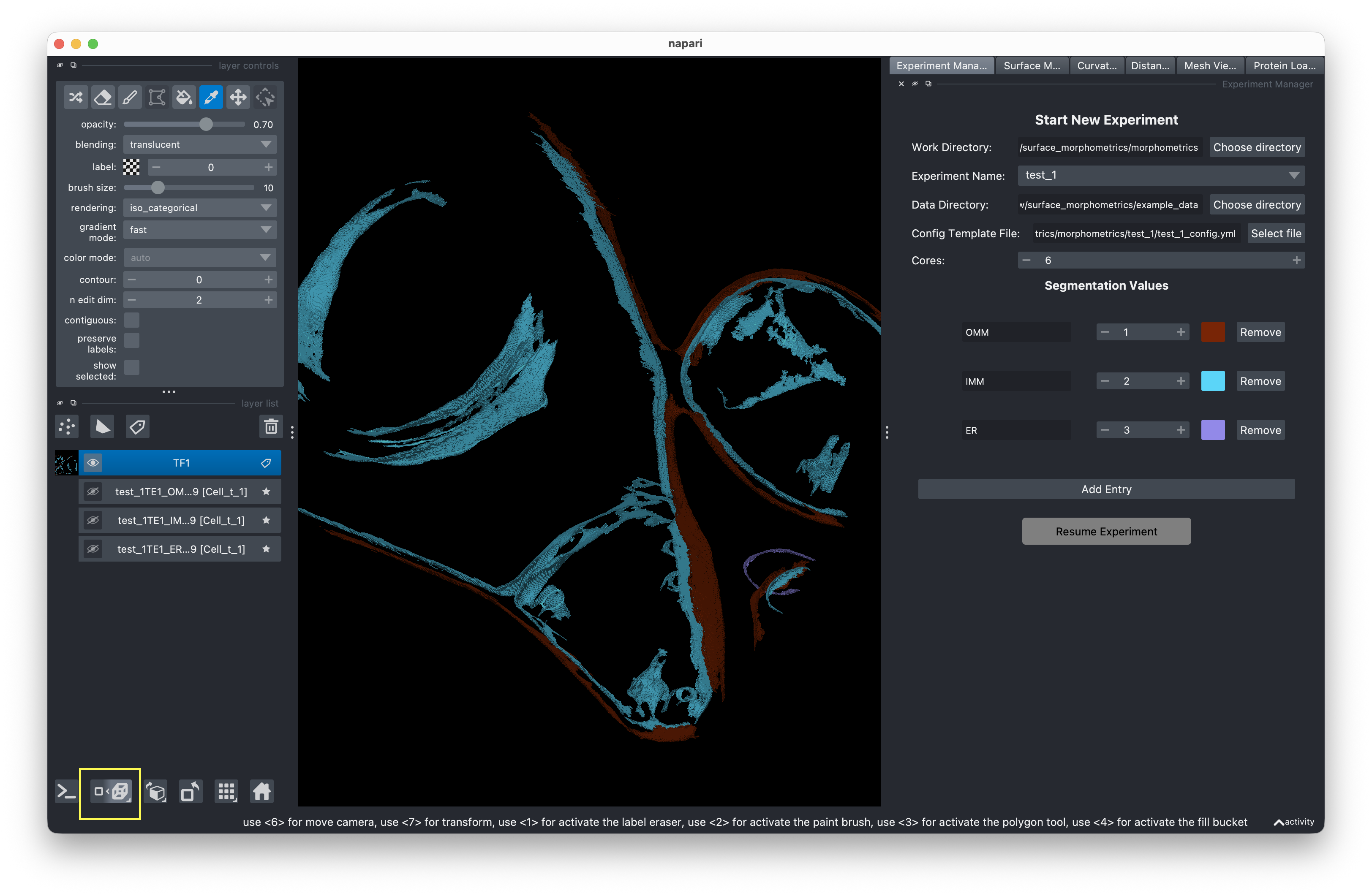
When you set up an experiment, a segmentation slice from your data directory is automatically displayed. This lets you verify you're working with the correct dataset.
Viewing meshes in 3D
After running mesh generation:
- In the visualization panel, use the mesh loader to select a mesh file.
- Click the "n display" button in the lower left to enter 3D rendering mode.
- Click and drag to rotate the view around the mesh.
Property visualization
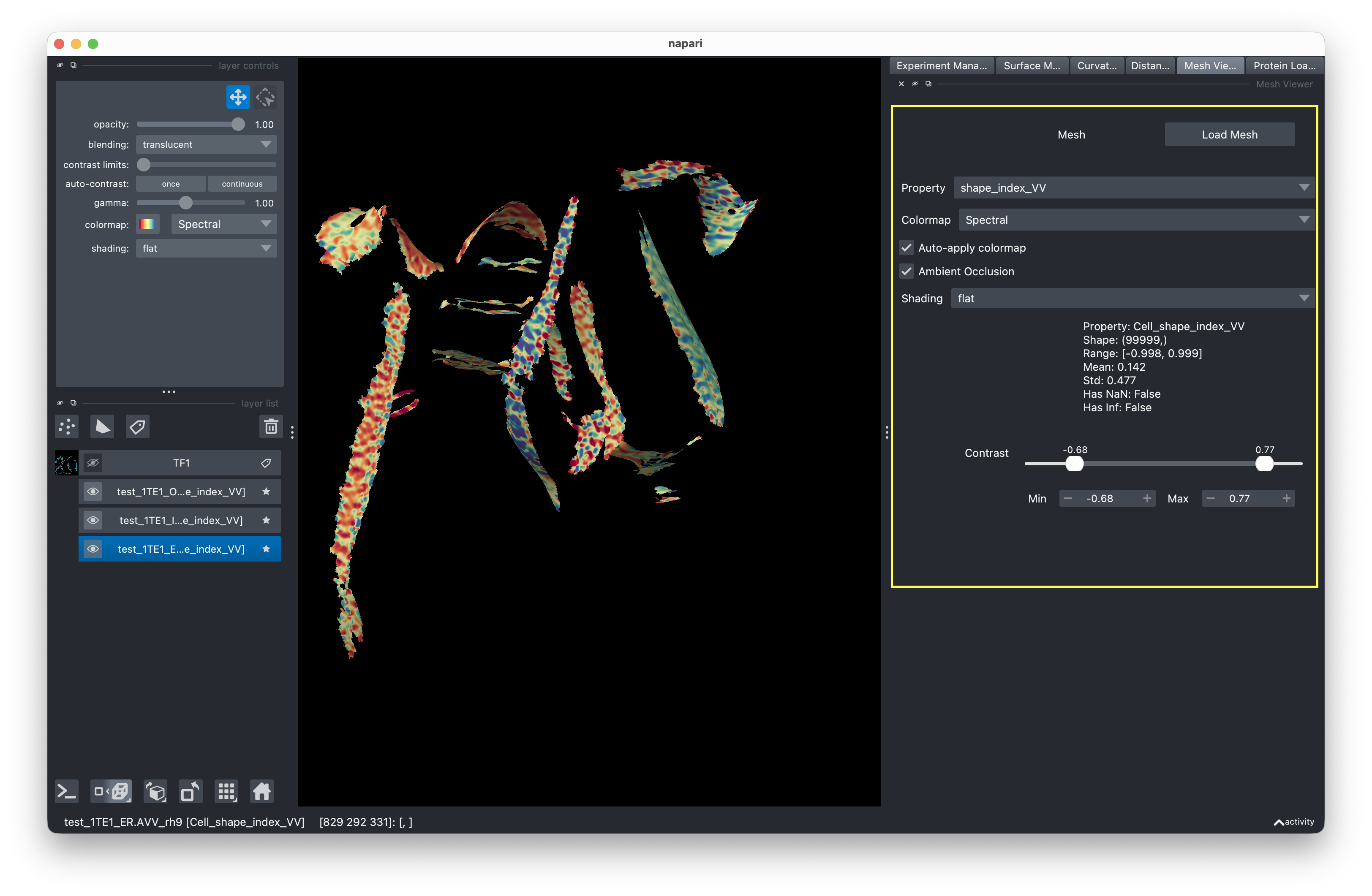
After running curvature analysis or distance measurements, you can map quantified properties onto the 3D surface:
- Load a mesh that has been processed (contains quantification data).
- Use the dropdown menu to select which property to visualize (e.g., Gaussian curvature, mean curvature, distance).
- Use the slider to adjust the contrast range of the colormap.
Different properties are displayed as colormaps on the 3D surface, letting you visually identify regions of interest.
Protein Loader
The Protein Loader tab lets you overlay structural data (e.g., ribosomes) onto your meshes.
- Load MRC File — Load the protein structure file.
- Load STAR File — Load the file containing position coordinates and orientations.
- Select a tomogram layer in the left panel.
- Click Extract Coordinates to retrieve structure positions for the selected tomogram.
- Click Show Structure to display the structures positioned and oriented on the mesh surface.